• Our new service is now live: Lowcost VPN — around €1.20/month + your local tax.

    Learn more >>>

[SOLVED] Update database over wifi only?

Winfried

New member
Hello,

Searching with "update database wifi" returned nothing.

A 2GB data plan is enough for my needs. To save the ~200MB Call.filter uses to update its DB, I was wondering if it can be configured to only update when I'm connected to the Net through wifi.

I found nothing obvious in the Settings.

Cheers,
 

Attachments

  • Call.filter.DB.updated.png
    Call.filter.DB.updated.png
    106.5 KB · Views: 2
Hello,

Searching with "update database wifi" returned nothing.

A 2GB data plan is enough for my needs. To save the ~200MB Call.filter uses to update its DB, I was wondering if it can be configured to only update when I'm connected to the Net through wifi.

I found nothing obvious in the Settings.

Cheers,

Hello,

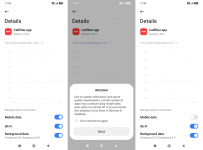
Callfilter.app does not have a separate “Wi-Fi only” update option, but this can usually be configured in Android system settings.

Open Android Settings → Apps → Callfilter.app → Mobile data / Data usage.

On many phones there is an option such as “Allow mobile data”, “Restrict data usage”, or “Network access”. Disable mobile data for Callfilter.app and leave Wi-Fi enabled.

The exact name depends on the phone manufacturer and Android version. On some devices stock Android may only allow disabling background mobile data, not all mobile data for one app.

Please do not restrict battery/background work for Callfilter.app, only mobile data access.
 
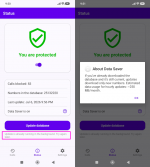
One more question: After connecting to wifi, I clicked on "Update database" for a manual update… but it didn't work.

How to proceed?
 

Attachments

  • Callfilter.app.manual.DB.update.png
    Callfilter.app.manual.DB.update.png
    122.8 KB · Views: 2
One more question: After connecting to wifi, I clicked on "Update database" for a manual update… but it didn't work.

How to proceed?

Hi,

This message means that the database update is already running in the background. You do not need to start it manually again.
Please keep the phone connected to Wi-Fi and wait a little. After the update finishes, the “Last update” time should change automatically.
If the message stays the same for a long time, for example more than 30–60 minutes, please restart the phone and try “Update database” again.
 
Back
Top